
 Use After New Battery Install to test a newly installed battery in a vehicle. Where applicable, the process will also include registering the battery in the vehicle and a Reset Electronics checklist.
At any time during the test, tap  to return to the previous screen; or
  to return to the Main Menu.
Battery Test
- Connect the charger clamps to the appropriate battery posts.
- At the Main Menu, tap After New Battery Install. The Acquire VIN screen is displayed.
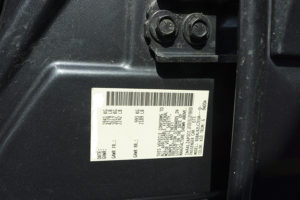
- Use a connected bar code scanner (optional accessory) to scan the VIN bar code, usually located on the driver’s side door frame. The VIN can also be entered manually or vehicle details can come from entering the Year/Make/Model of the vehicle. For best results, use the barcode located on the driver’s side door frame. The VIN is also displayed behind the windshield on the driver’s side dashboard.
For best results, use the barcode located on the driver’s side door frame. The VIN is also displayed behind the windshield on the driver’s side dashboard.
NOTE: Refer to Appendix A for recommended scanning procedures and VIN scanning help.
Driver’s Door Frame:
Manual Entry:
Use the on-screen keypad to manually type the 17-digit VIN and Tap NEXT. The displayed digit counter will count up the alphanumeric characters as they are entered on the keypad.

Year/Make/Model Entry:
Use the Search Library screen to select the year, make and vehicle model. Based on the entered information, the original equipment specifications, including battery rating is displayed. The Edit Battery Information screen displays vehicle and battery information based on the VIN.
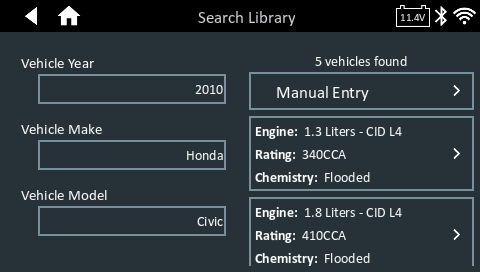
4. The Edit Battery information screen displays vehicle and battery information based on the VIN or the Year/Make/Model entered.
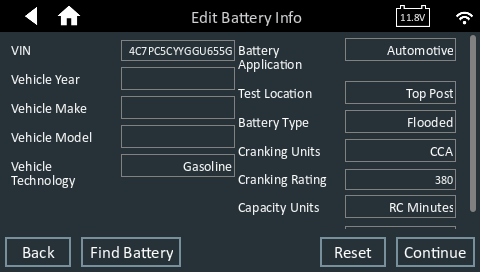
5. Tap the box across from each displayed parameter and select the correct information from the displayed list.If the displayed information is correct, tap Next to begin the Battery Test.
NOTE: Tap Find Battery to search for the battery location for the vehicle year, make, and model based on the VIN or vehicle year, make, and model selected.
The charger performs a series of tests to determine the overall condition of the battery before applying a charge. Those steps include measuring the ambient battery temperature, Cranking Health, Reserve Capacity, Charge Acceptance, and applying a Load Test to the battery.
The test results are then displayed on the charger screen.
Battery Test Results
See the In Vehicle Test article — Battery Results section — for screen images and descriptions.
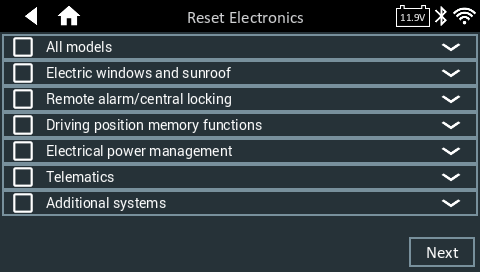
Reset Electronics
Use this function as a checklist to reset vehicle electronics following a new battery installation. Options displayed are determined by the VIN of the vehicle tested.
System Test Results – Summary
See the In Vehicle Test article — System Test section — for screen images and descriptions.
To send the test results to a configured printer or via email, tap Send Results and select an option. To return to the Home Screen, tap Done or to return to the Main Menu.
NOTE: Refer to the Test Results Decision Tables article for a complete explanation of possible test results.